
Tutorials
IN THIS LESSON

Backup Your Existing WordPress Website
**Disclosure: This page contains affiliate links. I may earn a commission if you purchase through them, at no extra cost to you.**
The absolutely first thing you should do before you do any website work that changes the functionality or look of your website, especially if your installing something is to backup your website via your host.*If you do not have a host yet, or WordPress installed, view this article instead
Because each host is different, I can not share with you the exact steps of your host.
I will share the steps to with Hostinger, which is the host that I recommend, and if you do not have a host yet; please consider Hostinger.
Hostinger Site Backup:
Log into your Hostinger account
Navigate to websites
Navigate to the website you want to backup.
Click on dashboard

Look for the option labeled backup.
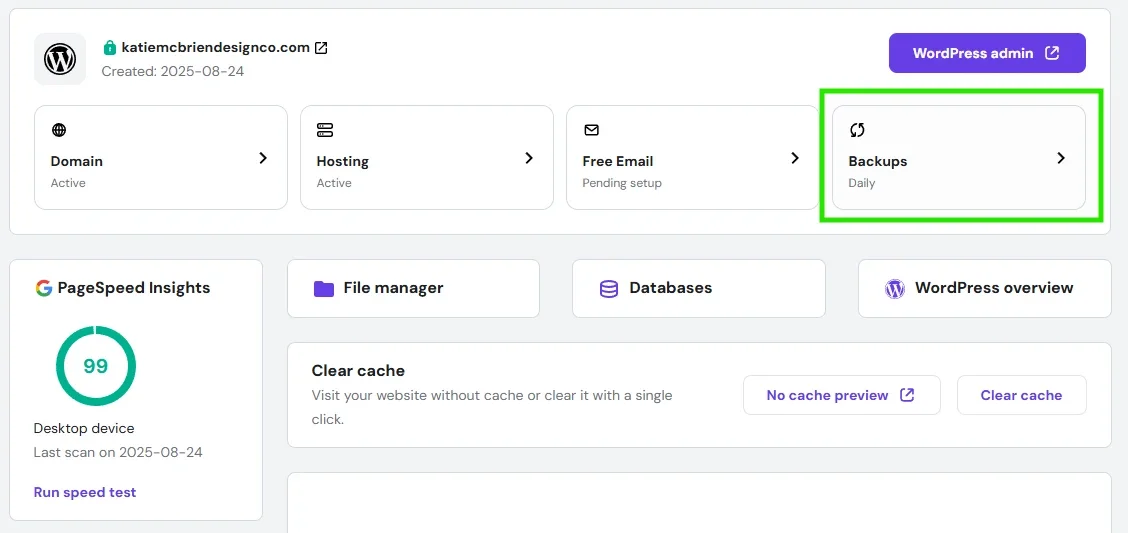
click on Manual backup – please note the creation of this backup can take a very long time depending on the size of your database. Please allow sufficient time to complete this step. I recommend starting this while multi-tasking like cleaning, running errands, etc.
Check your backup saved:
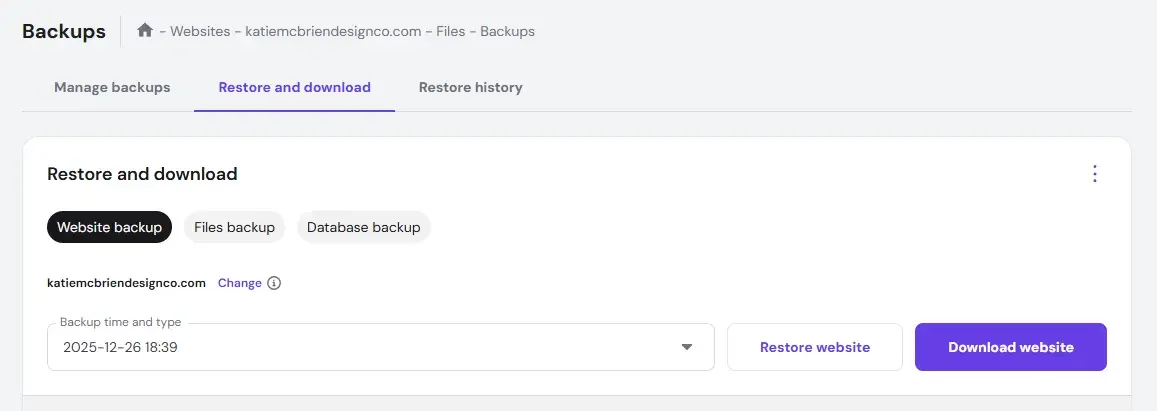
Now that your backup is saved and ready to fall back on, you can install your template.